Guides · File size & quality
How to make a GIF smaller: what each setting actually saves
We encoded the same clip dozens of ways and measured the file each time. Width and frame count matter most; colors and dithering come next; frame delay saves nothing.
By Li Jiang · Published · Updated · 7 min read
Tested: EasyGIF's encoder (gifenc with Floyd–Steinberg dithering) run on a 24-frame pan and a 6-photo slideshow made from Pexels photos, and a 20-frame drawn screen recording; measured 2026-10-29
Most advice about shrinking GIFs is a list of settings with no sense of scale. To find out what each one is worth, we took one short clip and encoded it again and again with the same encoder EasyGIF uses, changing one setting at a time and measuring the file. The test clip is a 2.4-second pan across a portrait photo: 24 frames at 10 frames per second, 480 × 270 px, 256 colors with dithering. That's a typical "phone video to GIF" case, and it comes out at 2,107 KB.
The short version: cut the width and the number of frames first; each can halve the file on its own. Then try fewer colors, and turn dithering off for screen recordings and flat graphics. Changing the frame delay doesn't change the size at all.
Why GIFs get big
A GIF stores every frame as a complete picture: a palette of up to 256 colors, then one palette index per pixel, compressed with LZW, a lossless method from the 1980s that works by finding repeated runs of the same values. Video formats save most of their space by storing only what changes between frames; GIF can't do that in a useful way for real-world footage, where nearly every pixel shifts a little between frames.
That gives a simple rule: file size ≈ pixels per frame × number of frames × how "noisy" each frame is. Every setting below attacks one of those three.
1. Lower the width (the biggest lever)
Pixels per frame grow with the square of the width, so halving the width removes three quarters of the pixels. Here is the same clip at four widths:
| Width | Size | Change from 480 px |
|---|---|---|
| 240 × 135 px | 601 KB | −71% |
| 320 × 180 px | 1,006 KB | −52% |
| 480 × 270 px | 2,107 KB | – |
| 640 × 360 px | 3,590 KB | +70% |
Going from 480 to 320 px cut the file by 52%. Most chats, help articles, and README files show GIFs at 300–500 px anyway, so a 640 px or wider GIF is often downscaled by the viewer's screen and the extra bytes are wasted. In EasyGIF, set the width under Canvas → Width, or pick a preset:
| Preset | Pixels | Use it for |
|---|---|---|
| Emoji | 128 × 128 | Custom emoji in chat apps, which often cap the file at a few hundred KB |
| Sticker | 320 × 320 | Stickers, avatars, and inline replies |
| Square | 480 × 480 | Social feeds, where square posts fill the most space |
| Story | 360 × 640 | Vertical stories and status updates |
| Wide | 640 × 360 | Slides, docs, help articles, and blog posts |
Limits change from app to app and over time, so if a chat or site rejects your GIF, check its current upload limit and step down a preset.
2. Use fewer frames
Frames add up linearly. Keeping every other frame of the same clip, so it plays at 5 instead of 10 frames per second for the same 2.4 seconds:
| Frames | Size |
|---|---|
| 24 frames (10 fps) | 2,107 KB |
| 12 frames (5 fps) | 1,051 KB (−50%) |
There are three ways to drop frames: trim the start and end of a clip (usually the cheapest cut, since the first and last half-second rarely matter), pick a lower frame rate when you add a video, or delete frames from the timeline. 10 frames per second looks smooth for most clips; slow scenes and screen walkthroughs survive 5.
3. Use fewer colors
Every frame can have up to 256 colors. Fewer colors means smaller indexes and longer repeated runs for LZW to compress:
| Colors | Size (dithering on) | Change | Quality (PSNR) |
|---|---|---|---|
| 256 | 2,107 KB | – | 35.5 dB |
| 128 | 1,676 KB | −20% | 33.5 dB |
| 64 | 1,327 KB | −37% | 31.1 dB |
| 32 | 1,022 KB | −52% | 28.8 dB |
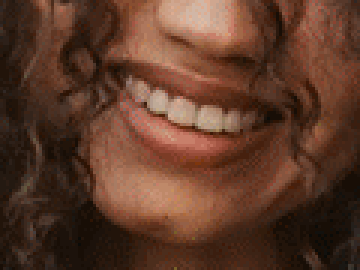
256 colors
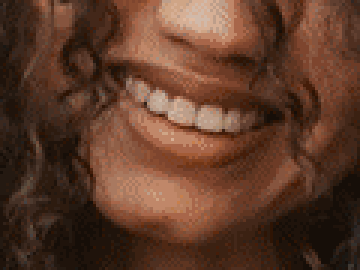
128 colors
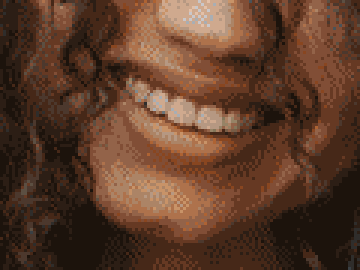
32 colors
PSNR measures how close the GIF's pixels are to the original photo; higher is closer, and every 3 dB drop roughly doubles the average error. Even enlarged, 128 colors is hard to tell apart from 256, while 32 colors shows visible grain on skin. For photos, try 128 first; for logos, stickers, and UI recordings, 64 or even 32 is often enough.
4. Turn dithering off when you can
Dithering scatters pixels of nearby colors to fake the shades a 256-color palette doesn't have. It makes gradients look smooth, but those scattered pixels are exactly the kind of noise LZW can't compress. On the photo clip at 256 colors, turning dithering off saved 17%. On a 20-frame screen recording of a flat app window it saved 73%: 385 KB with dithering, 106 KB without, with no visible difference, because flat UI colors fit in the palette without needing to be faked.
The dithering guide shows side-by-side crops and when it's worth keeping.
5. Share one palette across frames (sometimes)
By default each frame gets its own best 256 colors. A single shared palette saves the bytes of storing a palette per frame and stops colors from flickering between frames, but it has to cover every frame at once:
| Clip | Own palette per frame | One shared palette | Change |
|---|---|---|---|
| Photo pan (dithered) | 2,107 KB | 2,005 KB | −5% |
| Six-photo slideshow (dithered) | 892 KB | 748 KB | −16% |
| Screen recording (dithered) | 385 KB | 457 KB | +19% |
| Screen recording (no dithering) | 106 KB | 99 KB | −6% |
Two results stood out. The slideshow got smaller, but its quality dropped from 35.6 to 32.7 dB, because six very different photos had to share 256 colors. With dithering off, the shared palette was the smallest file of the four (541 KB) and kept the same score as each frame's own palette with dithering off (37.4 dB, against 35.6 dB shared). And the dithered screen recording got bigger: the shared palette didn't contain each frame's exact colors, so dithering filled the flat areas with noise. With dithering off, sharing saved a little. Use a shared palette to stop flicker in clips whose frames look alike, not as a size trick. Try both and compare in the preview; photos with similar colors suit a shared palette best.
6. Frame delay: no effect on size
We encoded the clip with 20 ms, 100 ms, and 1 second per frame. All three files were 2,107 KB, byte-for-byte the same size: the delay is a two-byte number in each frame's header (the GIF89a specification stores it in hundredths of a second). Slowing a GIF down makes it last longer without making it heavier, and speeding it up saves nothing; only removing frames does.
Putting it together
Combining the cheap wins, 64 colors, one palette, and no dithering, brought the original 2,107 KB clip down to 1,011 KB at the same size and frame count. Halving the frame count or going to 320 px on top of that gets it to roughly a quarter of the original. A good order to work in:
- Trim the clip to the moment that matters.
- Set the width for where the GIF will be shown (320–480 px for most uses).
- Drop to 10 or even 5 frames per second.
- Try 128 colors; go lower for flat graphics.
- Turn dithering off for screen recordings, logos, and illustrations.
After each change, click Create GIF in EasyGIF: the preview shows the new file size before you download, so you can see what each step bought you.
When a GIF can't get small enough
If a clip has to be long, wide, or full of motion, GIF may simply be the wrong format. The same 24 frames were 83 KB as an H.264 MP4 and 297 KB as an animated WebP. The format comparison explains when to switch and where each one plays.
To shrink a GIF you already have, the GIF compressor has the same measurements for re-saving an existing GIF. For specific targets, see the size guides for Discord and email.
How these numbers were measured
We don't quote file sizes from elsewhere. A script in the site's code base runs the GIF maker's encoder (gifenc, with the same Floyd–Steinberg dithering) on free Pexels photos: a pan across one portrait, cut into 24 frames, and a slideshow of six different photos. Each run starts from a baseline, changes one setting, and records the file size and the PSNR of all frames against the photos they came from.
The photos and settings are fixed, so a later run is directly comparable with this one; when the encoder changes, the numbers here and in the guides are regenerated together. Your own photos will give different sizes.
Try it on your own files
Free, no sign-up, and made on your device. Nothing is uploaded.
Open the GIF creatorSources (last checked October 30, 2026)
Spotted something out of date? Please let us know.