Guides · File size & quality
How to make a transparent GIF without jagged edges
GIF transparency is all-or-nothing per pixel, so soft edges turn jagged or leave a halo. Why it happens, and how matching the background color fixes it.
By Li Jiang · Published · 4 min read
Tested: A real cutout (potted plant, Pexels) rendered both ways on a dark page; transparency rules checked against EasyGIF's encoder source
A transparent GIF lets a sticker, logo, or cut-out animation sit on any background without a box around it. It also has a reputation for ugly edges: jagged outlines, or a thin white fringe that shows up the moment the GIF lands on a dark page. Both come from the same limit in the format, and both are avoidable once you know what's going on.
GIF transparency is one bit
In a PNG or WebP, every pixel has an alpha value from 0 (invisible) to 255 (solid), so an edge can fade out smoothly over a few pixels. GIF has no alpha channel. The GIF89a specification instead lets each frame name one palette entry as the "transparent color": pixels using that entry are invisible, and every other pixel is fully solid.
So when a soft-edged image becomes a GIF, every partly transparent pixel has to be pushed one way or the other. EasyGIF, like most encoders, uses a 50% cut-off: pixels at least half opaque become solid, the rest become transparent. The transparent color also takes one of the 256 palette slots, so a transparent GIF has at most 255 visible colors per frame.
Where the two problems come from
Jagged edges. A smooth curve drawn with partly transparent edge pixels becomes a staircase once those pixels are forced to solid or clear. The finer the detail (hair, fur, leaves, small text), the worse it looks.
Halos. The edge pixels that survive the cut-off keep the color they had while they were being blended, and that blend was usually made against the original background: often white in product photos, logos, and anything cut out of a light photo. On a white page that fringe is invisible. On a dark page it shows up as a pale outline.
Here is the same cut-out plant leaf as a GIF on a dark page, made two ways:
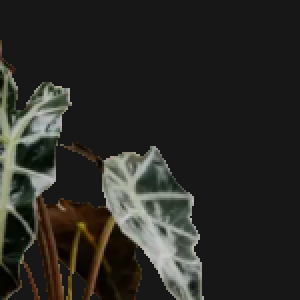
Transparent (1-bit)
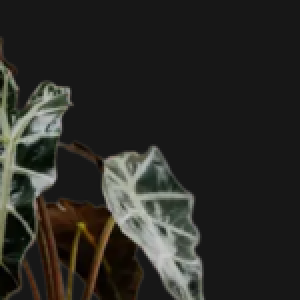
Matted to the page color
The fix: blend onto the color it will be shown on
If you know what the GIF will sit on, such as your website's background, a chat app's dark theme, or a slide's color, don't make it transparent at all. Fill the background with that exact color. The encoder then blends each soft edge pixel with the real background, exactly as a PNG would look when displayed there, and the edges come out smooth. Designers call this "matting".
In EasyGIF, open the Style tab and pick a background: white, black, or any color from the custom color picker (most browsers' pickers also accept a hex code such as #171717). The background fills transparent areas and the bars around images of a different shape.
This only works for one background. If the same GIF has to look right on both light and dark pages, choose the one where it will be seen most, or make two versions.
When you do need real transparency
Sometimes the background really is unknown: a sticker people will drop anywhere, or a GIF for a tool that supplies its own background. Then:
- Start from a clean cut-out. Images whose edges were cut from a plain background of a similar color to the final one fringe least.
- Prefer bold shapes. Thick outlines, flat colors, and simple silhouettes survive the 50% cut-off; wispy hair and thin lines don't.
- Add an outline. A 1–2 px darker outline around a sticker hides the stair-steps on any background. For text, EasyGIF's caption outline does the same job.
- Keep text opaque. Text under 50% opacity disappears entirely over a transparent background, because every one of its pixels falls below the cut-off.
- Check on both a light and a dark background before you share it.
Opening a transparent GIF in EasyGIF
When you add an existing GIF, EasyGIF checks its first frame. If any pixel is see-through, the background is switched to transparent automatically, so editing a transparent sticker keeps it transparent. You can switch it to a solid color under Style at any time; nothing is final until you click Create GIF. Still PNG images work differently: they start on a white background, as the PNG to GIF converter explains.
If the edges must be perfect
GIF can't do soft transparency, full stop. If smooth edges over any background matter more than compatibility, use animated WebP or APNG, which both support full alpha in current browsers; the format comparison covers where they work. For email, chats, and anywhere else GIF is the only option, matting to the right color is the way to get clean edges.
Try it on your own files
Free, no sign-up, and made on your device. Nothing is uploaded.
Open the GIF creatorSources (last checked October 10, 2026)
- W3C: GIF89a specification (Graphic Control Extension, transparency)
- MDN: image file type and format guide
Spotted something out of date? Please let us know.