Guides · Workflows
How to turn a screen recording into a GIF on Mac, Windows, iPhone, and Android
Record your screen with the tools already built into your device, then turn the clip into a small, sharp GIF for docs, bug reports, and chats. Settings that keep text crisp included.
By Li Jiang · Published · 4 min read
Tested: Recording steps checked against Apple, Microsoft, and Google support pages; file sizes from a 20-frame app-window recording encoded with EasyGIF's encoder, measured 2026-10-29
A GIF of your screen is often the fastest way to show something: a bug, a new feature, how to find a setting. It plays automatically in documentation, issue trackers, chats, and email, without anyone pressing play. You don't need a special recorder for it; every major operating system has one built in. Record a short clip, then convert it.
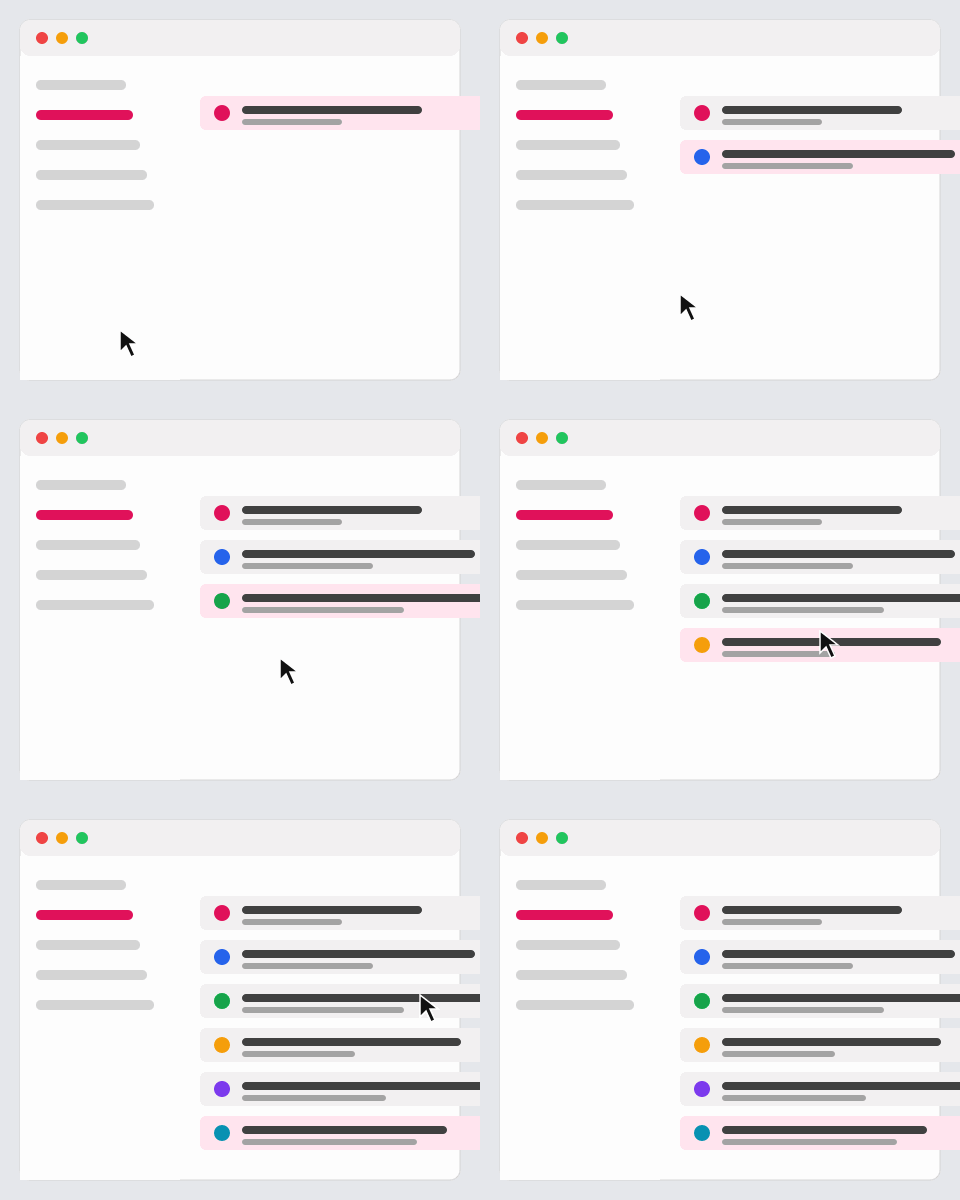
Step 1: Record the screen
On a Mac
- Press Shift-Command-5 to open the Screenshot toolbar.
- Choose Record Selected Portion and drag the frame around just the area you want, or Record Entire Screen.
- Click Record. To stop, click the Stop button in the menu bar or press Command-Control-Esc.
The recording is saved as a .mov file, named "Screen Recording" with the date and time; by default it goes to your desktop. QuickTime Player's File → New Screen Recording does the same.
On Windows 11
- Press Windows logo key + Shift + R, or open Snipping Tool and select the Record button, then New.
- Drag to select the area of the screen to record, then select Start.
- Stop the recording from the Snipping Tool bar and save it.
Snipping Tool saves the clip as an MP4 video, which opens in any browser.
On iPhone or iPad
- Open Control Center and tap the Screen Recording button. If it isn't there, add it in Control Center's edit mode.
- Exit Control Center; recording starts after a short countdown.
- To stop, tap the Screen Recording button at the top of the screen, then tap Stop.
The video is saved to the Photos app.
On Android
- Swipe down twice from the top of the screen.
- Tap Screen record. You might need to swipe right to find it, or tap Edit and drag it into Quick Settings.
- Choose what to record and tap Start; stop it from the notification.
The video is saved to your gallery. Wording varies a little between phone makers.
Step 2: Record with the GIF in mind
A few habits make the GIF smaller and easier to follow:
- Record only what matters. A selected window or region beats a full screen; a smaller area means a smaller GIF at a larger, more readable scale.
- Hide clutter. Close unrelated tabs and notifications, and use a plain wallpaper if the desktop shows.
- Move the mouse slowly and pause on each step. At 10 frames per second, quick movements jump instead of glide.
- Keep it short. 5–10 seconds is plenty. A GIF holds up to 150 frames in EasyGIF, which is 15 seconds at 10 frames per second.
Step 3: Convert the recording to a GIF
- Open the video to GIF converter and drop the recording in. It opens on your device; nothing is uploaded, which matters when your screen shows private information.
- Drag the start and end handles to cut off the moments where you start and stop the recorder.
- Choose a frame rate: 10 fps for most screen recordings, 15–20 if there's scrolling or animation, 5 for slow step-by-step walkthroughs.
- Click Add frames. The clip appears on the timeline.
Step 4: Settings that keep text sharp and the file small
Screen content is mostly flat colors and text, which GIF handles well, as long as you change two defaults.
Turn dithering off (Style tab). Dithering exists to fake smooth photographic shades; on a screen it only adds noise. In our test recording, turning it off cut the file from 385 KB to 106 KB, a 73% saving, with no visible difference. The dithering guide has side-by-side crops.
Try 64 colors. Most interfaces use far fewer than 256 colors. At 64 colors without dithering our recording was 99 KB.
Don't shrink text too far. Text becomes unreadable quickly when a wide screen is scaled down. Crop to the relevant part first (Canvas → Crop), then set the width. 480–800 px works for most docs and issue trackers; if text still looks soft, record a smaller region rather than scaling down a big one.
Hold the last frame. End on the result and give people time to see it: duplicate the last frame a few times on the timeline, or, if you made the GIF from still screenshots instead, set a longer delay.
Step 5: Check and share
Click Create GIF to see the final file and its size before downloading. Many bug trackers, wikis, and chats have upload limits of a few megabytes, and a smaller GIF also loads faster for everyone who opens the page. If it's too big, trim the clip or lower the width; the file size guide lists every lever in order of impact.
Try it on your own files
Free, no sign-up, and made on your device. Nothing is uploaded.
Open the video to GIF converterSources (last checked October 10, 2026)
- Apple Support: How to record the screen on Mac
- Microsoft Support: Use Snipping Tool to capture screenshots
- Apple Support: Record the screen on your iPhone, iPad, or iPod touch
- Android Help: Take a screenshot or record your screen
Spotted something out of date? Please let us know.